


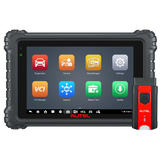
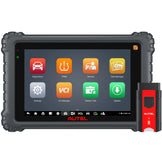











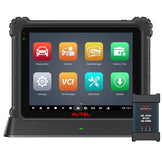


Getting the most out of your Autel MD909 PRO starts with two quick setup steps: registration and software updates. A lot of first-time users skip these steps and end up with limited vehicle coverage or unstable diagnostics. This guide walks you through the entire process — from creating your Autel account to updating the VCI firmware — so your scanner runs at full capability from day one.
Why Register Your Autel MD909 PRO?
Brand new out of the box, the MD909 PRO only has basic diagnostic software loaded. Registration unlocks the full feature set and links the device to your personal Autel account. Once registered, you can:
- Download free software updates for life
- Access the latest vehicle model database
- Unlock all service reset functions
- Get faster warranty and after-sales support
Your serial number is tied to your Autel ID whether you register on the scanner itself or through the Autel website. Both methods produce the same result.
Two Ways to Register Your MD909 PRO
Method 1: Register Directly on the Scanner
This is the fastest way and works best for most new users.
- Power on the MD909 PRO and connect to Wi-Fi
- Open the User Center app from the home screen
- Sign in with an existing Autel ID, or create a new account
- Go to Device Management
- Select "Bind Current Device"
The scanner automatically detects its own serial number and registration code during the binding process — no manual typing needed. Just tap confirm and you are done.
Method 2: Register Through the Autel Website
If you prefer working from a computer, you can set up your account and bind the device ahead of time.
- Go to the Autel Professional User Platform website
- Create an Autel ID or log into your existing account
- Navigate to the product registration page
- Enter the device serial number and registration password manually
You can find both the serial number and registration code under Settings → About on the MD909 PRO.
How to Update MD909 PRO Software
The MD909 PRO has a built-in Update app that handles all official software downloads. Before you start, double-check three things:
- The battery is above 50%, or the device is plugged into power
- You are connected to a stable Wi-Fi network
- You are logged in with your registered Autel account
Once inside the Update page, you can either update individual modules one by one, or tap "Update All" to grab everything in one go. Downloads can be paused and resumed. When the download finishes, the scanner installs the new version automatically — no extra steps required.
The Step Most People Skip: VCI Firmware Upgrade
Updating the main scanner software is important, but many users forget about the VCI (Vehicle Communication Interface) dongle. If the VCI firmware is out of date, you may experience:
- Unstable Bluetooth connection
- Slower data transfer speeds
- Random identification failures
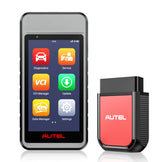
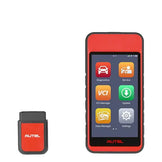
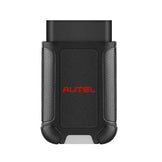
The MD909 PRO uses the MaxiVCI V150 Lite wireless diagnostic interface, and it needs its own firmware updates from time to time.
How to Update the VCI Firmware
Before starting, make sure:
- The VCI dongle is plugged into the vehicle's OBD port
- The vehicle ignition is switched on
- The VCI is paired to the scanner via Bluetooth
Then open the VCI Manager app on the MD909 PRO, check for new firmware, and follow the on-screen prompts to complete the upgrade. The whole process only takes a few minutes, but it makes a noticeable difference in connection reliability.
Quick Troubleshooting Tips
- Registration fails: Double-check that your serial number and password are entered correctly. The code is case-sensitive.
- Update won't download: Try switching to a different Wi-Fi network. Public or office networks sometimes block the download servers.
- VCI won't connect: Reboot both the scanner and the VCI dongle. If the problem continues, check for a VCI firmware update first.
- Missing vehicle brands: Run a full "Update All" from the Update app. Newer makes and models are added through software updates.
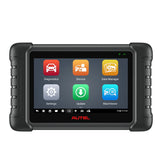
Autel MaxiDiag MD909 PRO
All-system diagnostics, 11 service reset functions, CAN FD support, and lifetime free software updates — all in a pocket-sized device.
MD909 PRO Key Features at a Glance
Beyond the setup process, here is what makes the MD909 PRO a popular choice for DIYers and small shops alike:
- All-System Diagnosis — Scans every electronic module on the vehicle, not just the check engine light. Read and clear codes from ABS, SRS, transmission, BCM, and more.
- 11 Service Functions — Handle common maintenance yourself: Oil Reset, ABS Bleed, Injector Coding, SAS Calibration, EPB, BMS, TPMS, DPF Regen, Throttle Adaptation, AFS Adjustment, and Air-Fuel Ratio Reset.
- CAN FD Support — Works with the latest CAN FD protocol found on 2020 and newer vehicles, so your tool does not become obsolete overnight.
- Lifetime Free Updates — No annual subscription fees. Download new vehicle coverage and software improvements over Wi-Fi for as long as you own the scanner.
- Wireless VCI Included — The Bluetooth VCI dongle lets you move freely around the vehicle while running diagnostics.
- Wide Vehicle Coverage — Supports American, Asian, and European makes up to the current model year.
Final Tips for Long-Term Performance
To keep your MD909 PRO running smoothly for years:
- Check for software updates roughly once a month
- Update the VCI firmware whenever you notice connection issues
- Keep your Autel account email active — it is how you recover access if needed
With proper registration, regular updates, and occasional VCI firmware maintenance, the Autel MaxiDiag MD909 PRO will deliver reliable, professional-grade diagnostics through every service job.
Ready to pick one up? Buy the MD909 PRO from Auteldealer →