
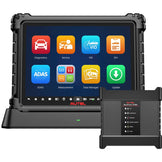
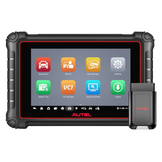

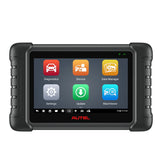

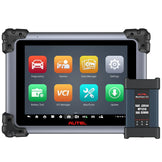
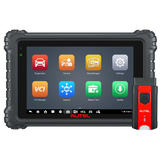
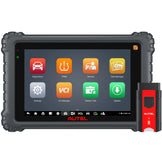


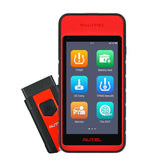


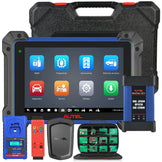
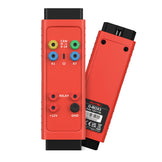

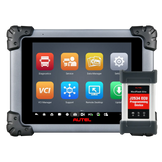
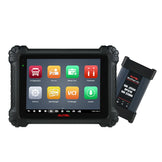
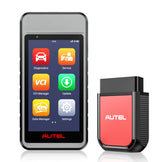
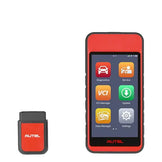
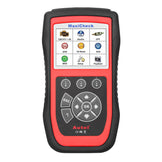
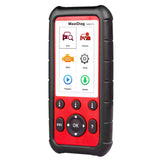




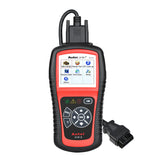
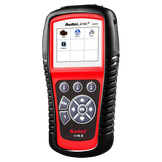
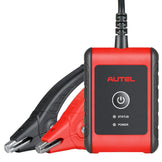
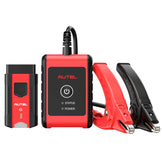
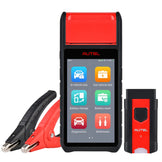


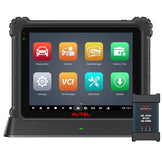


If your Autel diagnostic tool is glitching — stuck on updates, freezing mid-job, or running slow — you don’t need to wait for customer support. Most common issues stem from built-up cached data and unused vehicle apps clogging storage and memory. Below are the typical problem signs, plus two simple fixes you can complete in minutes.
Common Issues This Guide Will Fix
- Stuck/failed updates after renewal: New software gets stuck downloading or throws install errors, caused by conflicting old cached files from previous versions.
- App crashes during work: Diagnostic apps freeze or force-close mid-scan/programming, usually from corrupted temporary data built up over daily use.
- Slow, laggy interface: Menus load slowly and app switching feels sluggish as leftover cache eats up system memory.
- “Insufficient storage” warnings: Hidden installation files and forgotten vehicle apps occupy gigabytes of space, even when you haven’t installed new software recently.
- Unstable OBD connections: Connection drops or function loading failures for vehicles that previously worked normally, often tied to corrupted app configuration data.
- Faster battery drain: Idle unused apps and background cache force the processor to work harder, shortening battery life during field work.
Fix 1: Clear App Cache to Fix Crashes & Update Errors
Clearing app data only wipes temporary corrupted files — it will not delete your saved diagnostic reports, settings or user profiles. For “MaxiCheck” or “Maxisys” apps:
- Press and hold the “MaxiCheck” or “Maxisys” app icon on your home screen.
- Drag the icon up to the details/info icon at the top of the screen to open the App Info page.
- Tap Clear data and confirm the action. The cache will be cleared in seconds.
Fix 2: Uninstall Unused Apps to Free Up Storage
For vehicle software packages you no longer need, uninstalling them frees up large amounts of storage and improves overall speed:
- Open the Data Manager app from your device home screen.
- Scroll to locate the Uninstall Apps feature and tap to enter.
- Check the boxes next to any unused vehicle apps or software packages, then confirm to remove them.
Wrap Up
These two quick steps resolve the vast majority of Autel device performance issues, with no support ticket or downtime required. We recommend running this light cleanup every 2–3 months to keep your tool running at peak speed.
Looking to expand your Autel tool set or upgrade your device? Browse our full catalog online, or send us an email for a custom discount quote.