

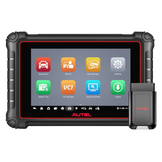




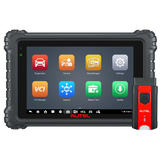



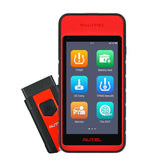


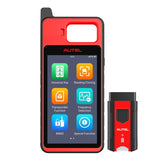

















Why the KM100 Stands Out: Lifetime Free Updates (No Subscription Required!)
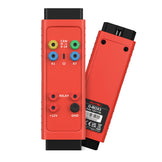
Unlike many other Autel scanners that require paid annual subscriptions to access updates, the Autel MaxiIM KM100 offers lifetime free software and firmware upgrades—no recurring fees, no hidden costs. This makes it a budget-friendly choice for locksmiths and technicians who want reliable key programming and immobilizer tools without ongoing expenses.
To keep your KM100 running at full capacity with the latest vehicle coverage and features, follow our step-by-step guide below.
Step-by-Step: Register & Update Your Autel KM100
Part 1: Register the KM100 (First-Time Setup)
-
Power On & Initial Setup
- Turn on your KM100 device.
- Read and accept the user disclaimer to proceed.
-
Connect to Wi-Fi
- Navigate to Settings > System Settings > WLAN.
- Toggle Wi-Fi on and select your network, then enter the password to connect. A stable internet connection is required for registration and updates.
-
Start the Registration Process
- Return to the home screen and tap the Update app.
- The device will prompt you that the product is not registered. Tap Register to continue.
-
Link to Your Autel Account
- If you already have an Autel account: Enter your registered email and password, then log in. You will need the device’s serial number (found in the About menu or on the device label) to complete registration.
- If you don’t have an Autel account: Tap Create an Autel account, then follow the prompts to register with your email address and a secure password.
- Complete the registration verification and confirm the device link. Once successful, your KM100 will be tied to your account.
Part 2: Update the KM100 Software
-
Access the Update Menu
- After completing registration, return to the home screen and open the Update app again.
-
Install the System Program
- From the list of available updates, select System Program and tap Download.
- Wait for the download and installation to finish. The device will automatically reboot once the process is complete—do not power off the KM100 during this step.
-
Download Required Applications
- After rebooting, re-open the Update app.
- Locate and download the KeytoolDiag application, which is essential for core KM100 functions.
- Next, download all required IMMO (immobilizer) programs and key programming software listed for your device. These updates expand vehicle coverage and add new features.
Part 3: Update the VCI V200 Firmware
-
Connect the VCI to the KM100
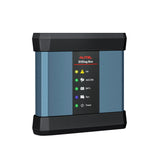
- Use a USB cable to connect the Autel VCI V200 to your KM100 device.
-
Access VCI Manager
- Return to the home screen and open Settings > VCI Manager.
- The menu will display your connected VCI V200 and its current firmware version.
-
Check for & Install Firmware Updates
- Tap Firmware Upgrade to check for available updates.
- If a new firmware version is found, tap Update and wait for the process to complete. The VCI will reboot automatically during installation.
- Once finished, the VCI firmware will be up-to-date and ready for use with the KM100.
Outgrowing the KM100? Explore the Full MaxiIM Series!
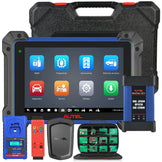
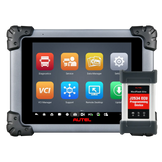
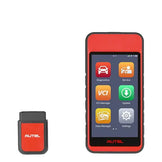
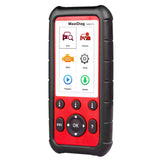
If you need advanced features, broader vehicle coverage, or more powerful key programming and IMMO functions, the Autel MaxiIM series offers tools to suit every professional need. From entry-level key programmers to high-end all-in-one immobilizer and diagnostic scanners, there’s a device to match your workflow.
Need help with registration, updates, or choosing the right MaxiIM tool? Our team is here to assist you—reach out anytime!